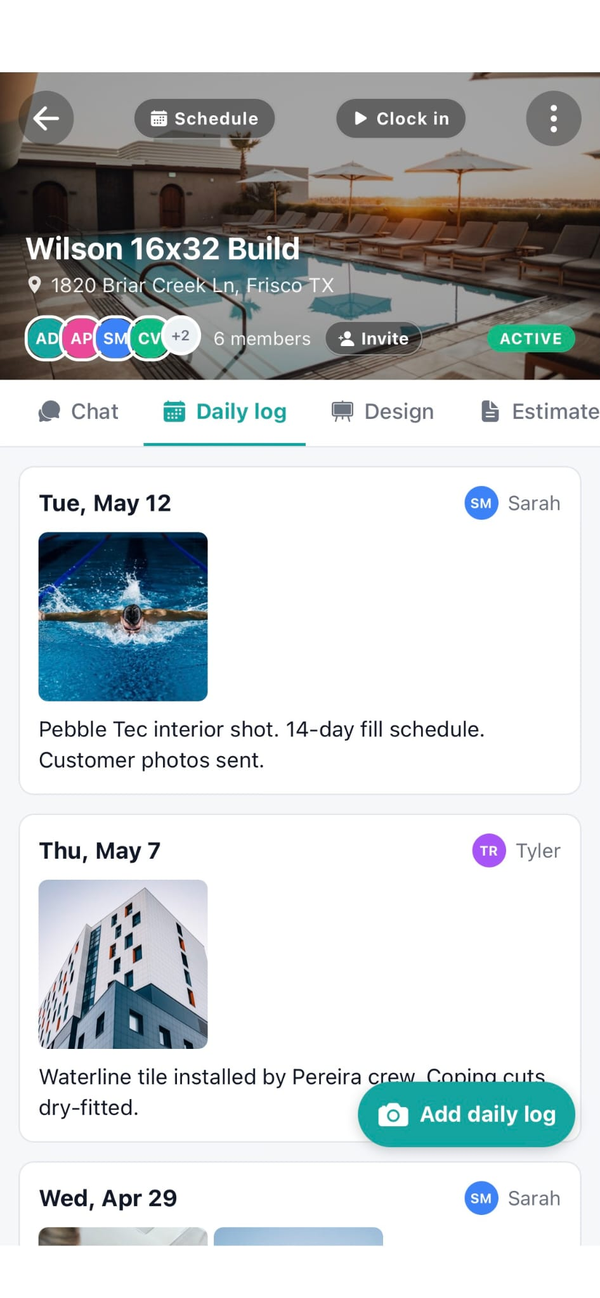
How does crew time tracking work in Workhand?
Each worker opens the job they are working on, taps Clock In, and Workhand starts counting. A banner at the top of every screen shows the active timer until they tap Clock Out. Hours land on the right job automatically because the clock-in started from inside that job. No timesheets at end of week, no guessing which hours belonged to which build.
Does Workhand use GPS to verify employees are on the jobsite?
No. Workhand does not require GPS tracking, geofencing, or location surveillance. Crews report what they worked, owners trust them, and the per-job clock-in flow makes it harder to clock in on the wrong job by accident. If you need geofencing, the trust model in Workhand probably is not the right fit for your crew. For most small crews under 15, GPS surveillance is overkill and bad for morale.
Does time tracking work offline?
Yes. Clock in, clock out, and time entry edits all work without signal. The action queues locally and syncs automatically the second the device gets signal again. The active timer banner stays accurate even when offline so workers can see they are on the clock. This is the difference between losing an hour in a basement remodel and capturing it.
Can my employees see each other's hours?
No. Employee role only sees their own time entries. Owner and admin (PM) roles see the full company time report with hours per user per job. This is enforced at the database level, not just hidden in the UI, so an employee cannot get around it by switching screens. Sales and sub roles do not see time data at all.
Can I edit hours after the fact?
Yes. If a worker forgot to clock out at end of day, owners and admins can edit the end time with one tap. Notes can be added per entry to explain corrections. The edits are tracked so payroll Friday has a clear audit trail of what was modified and when.
What is the billable hours toggle?
Each time entry has a billable yes/no toggle. Billable hours feed customer invoices and per-job profit. Non-billable hours (training, internal meetings, equipment moves, lunch breaks for hourly crews) stay in the report but do not roll into invoiceable time. Default is billable. Flip it to non-billable on the specific entries that should not be charged.
Does time tracking cost extra on Workhand?
No. Time tracking is included on every plan, including Free. Free supports 1 active job and 1 team member which covers solo operators. Pro at 34.99 per month adds unlimited jobs. Team at 89.99 per month supports up to 15 users so the whole crew can clock in and out from their own phones.
How do the hours connect to payroll and profit per job?
Time tracking is wired into both reports. The Time report shows hours per user per period for payroll, exportable to CSV. The per-job costing report rolls labor hours times rate into the cost-of-job total, which feeds the profit and margin number you see on the job. One source of truth, two ways to slice it.